Choose the assistant that matches your workflow: PRO combines Scalping + Swing, while Scalping Assistant and Swing Assistant are dedicated standalone products.
TA / PRO
TA
Trading Assistant PRO
A complete EA for Scalping and Swing assistance inside one MT5 workspace.
EXPANSION READYNew M.O.R.P.H. products can be added to this hub without changing the user access flow.
TRADING ASSISTANT CAPABILITIES
Everything visible. Every control explained.
PRO combines both workflows. Scalping Assistant and Swing Assistant provide dedicated standalone workspaces for their respective execution styles.
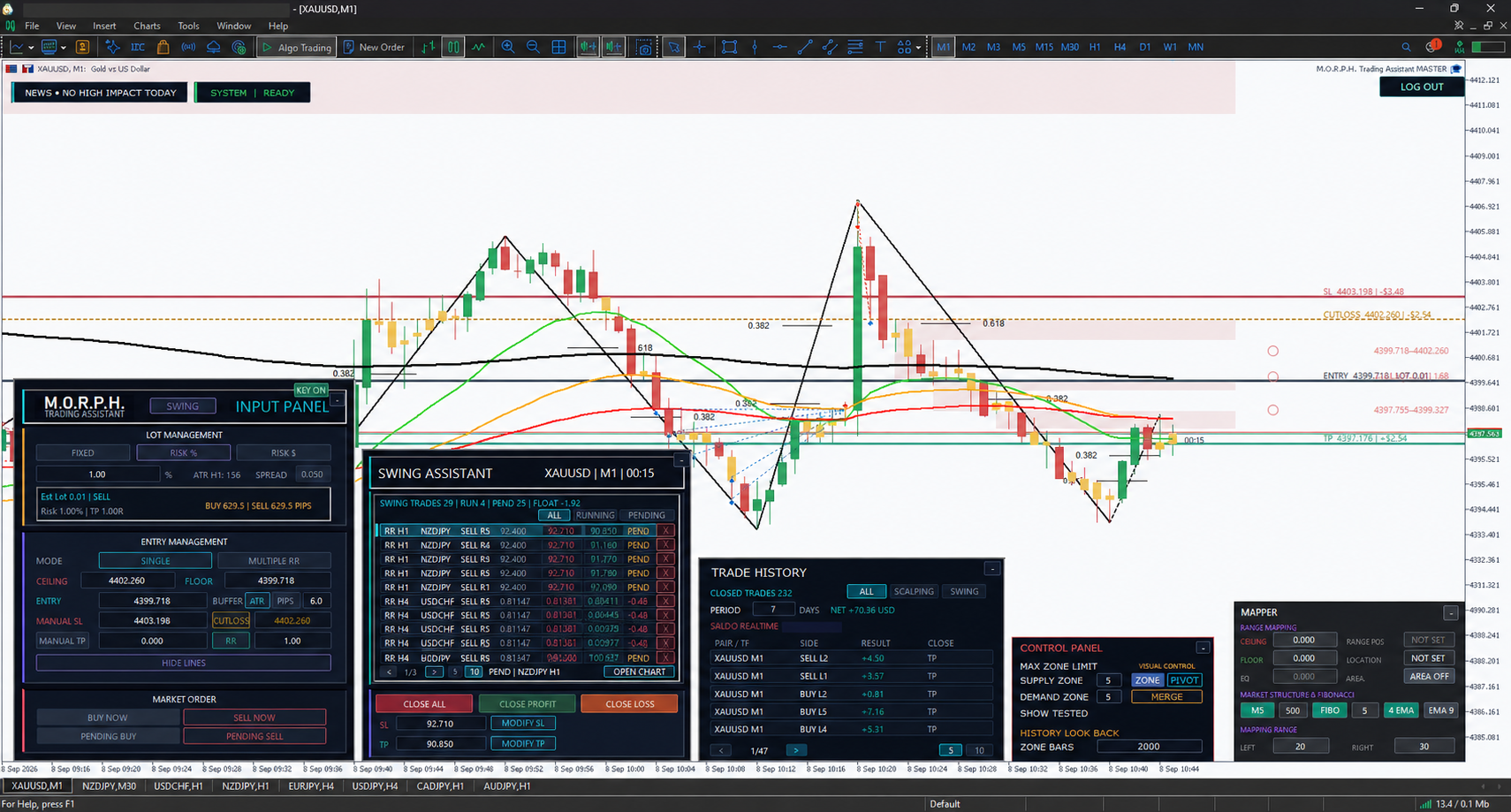
01 / SWING
Plan by price structure and Risk/Reward.
INPUT PANEL · LOT MANAGEMENT
Choose Fixed Lot, Risk %, or Risk $. Tolerance remains visible for interface consistency but is reserved for Scalping.
INPUT PANEL · ENTRY MANAGEMENT
Select Single or Multiple RR, set Entry and hard SL, choose ATR or Pips buffer, enable candle-close CutLoss, configure RR or Manual TP, Guard, Max TP, and planning lines.
INPUT PANEL · MARKET ORDER
Open Buy Now or Sell Now from the active plan, or create Pending Buy and Pending Sell at the planned Entry.
SWING ASSISTANT
Review five tickets per page, open the source chart, cancel or close an exact ticket, modify SL/TP, close all/profit/loss groups, move a running Single trade to BEP, and control Trailing Stop.
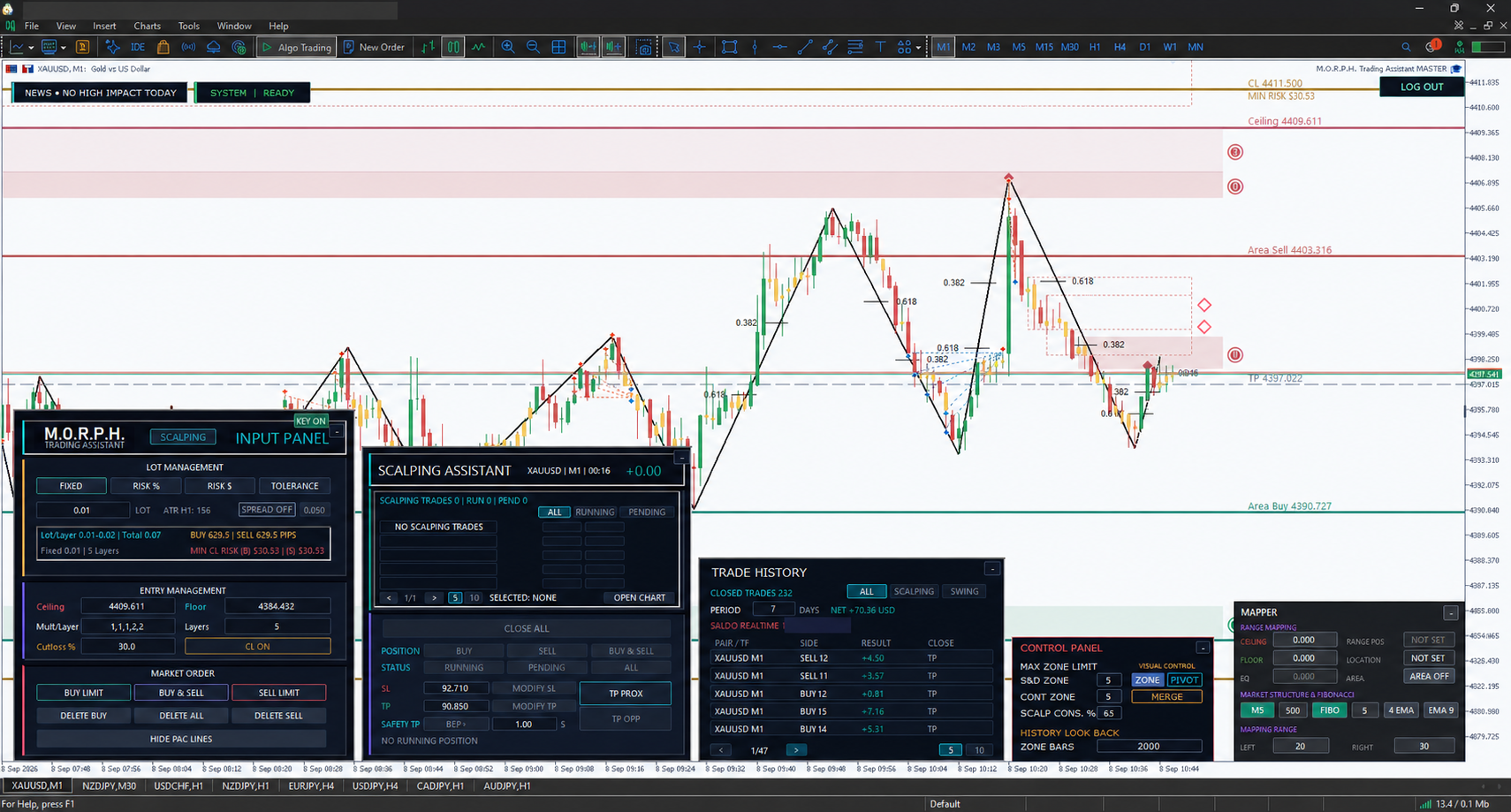
Prepare layered entries and manage the live basket.
INPUT PANEL · LOT MANAGEMENT
Choose Fixed Lot, Risk %, Risk $, or Tolerance sizing. Review estimated total lot, per-layer lot, ATR, spread, minimum CutLoss risk, and maximum hard-SL risk before execution.
INPUT PANEL · ENTRY MANAGEMENT
Define Ceiling and Floor, configure the layer multiplier sequence and layer count, set the CutLoss percentage, then keep hard SL in automatic area-width mode or enter a persistent manual maximum risk in USD.
INPUT PANEL · MARKET ORDER
Place Buy Limit, Sell Limit, or both sides together; delete Buy, Sell, or every pending order; and show or hide PAC planning lines.
SCALPING ASSISTANT
Filter All/Running/Pending tickets, inspect each layer and floating P/L, close or cancel an exact ticket, modify SL/TP, close the full basket, and use Safety TP actions: BEP+, TP Prox, or TP Opp.
TRADE HISTORYClosed-trade filters, result, close reason, period net, and realtime balance.
CONTROL PANELZone counts, Pivot, Base, Merge, tested-zone display, scan depth, and Scalping consumption threshold.
NEWS + SYSTEMHigh-impact news status, readiness state, secure session, and account switch or logout controls.
REAL MT5 WORKSPACE
Two trading modes. Two clear workspaces.
Compare the complete control layout with the clean chart view for each mode.
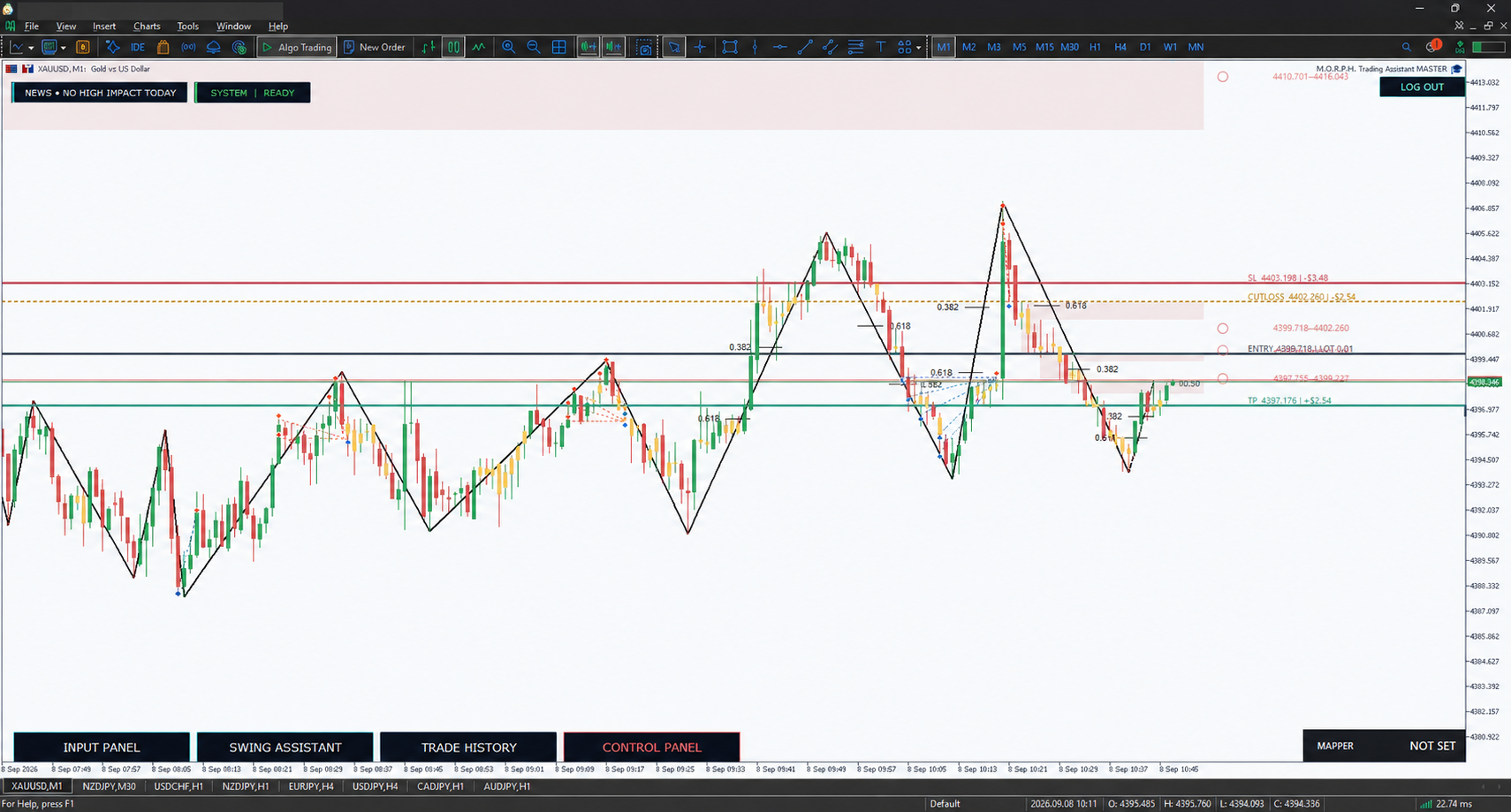
01 / SWING
Swing workspace
Structured planning for entry, CutLoss, RR targets, and position management.
FULL CONTROL VIEWInput, Swing Assistant, Trade History, Control Panel, and Mapper.CLEAN CHART VIEWPanels minimized while structure and trade levels remain visible.
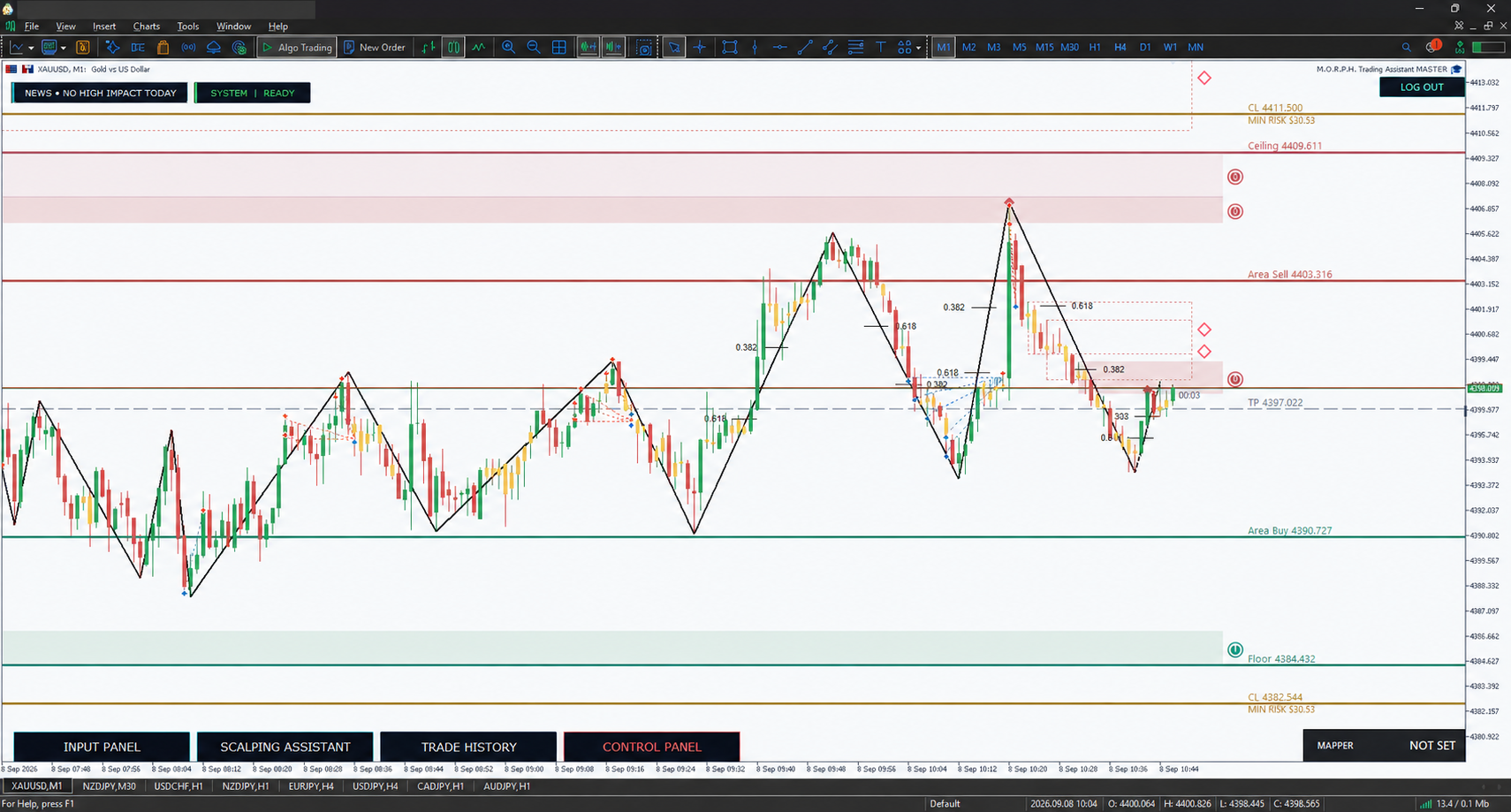
02 / SCALPING
Scalping workspace
Fast multi-layer preparation with direct execution and live management controls.
FULL CONTROL VIEWScalping inputs, execution controls, Trade History, and Mapper.CLEAN CHART VIEWMaximum chart space without removing active market context.
SECURE USER ACCESS
Licensed access starts inside MT5.
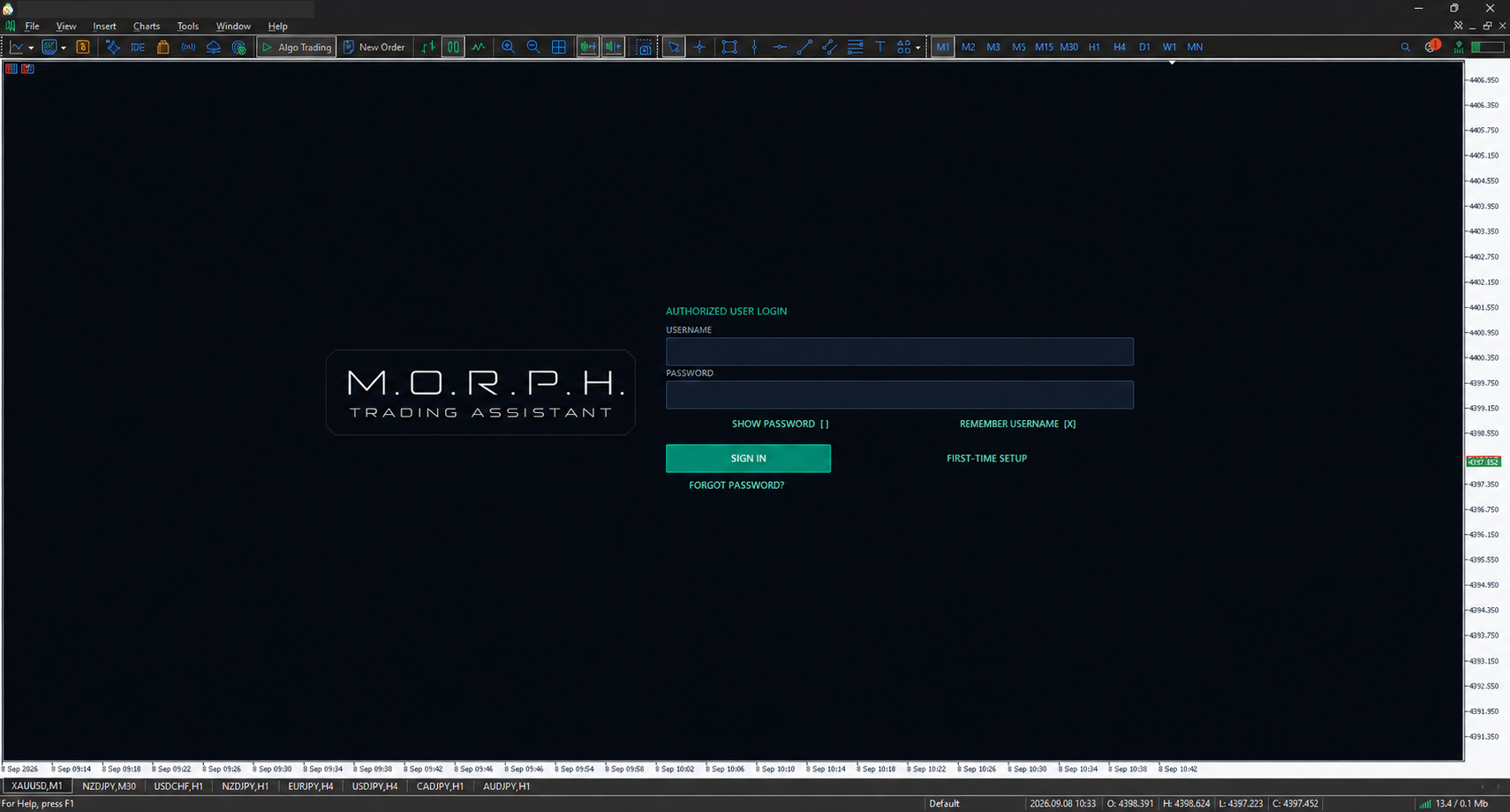
Every user signs in through the Trading Assistant. First-time access uses a one-time registration code, followed by a private username and password.
01ACCOUNT BINDING
Access can be bound to approved MT5 accounts and broker servers.
02CONTROLLED SESSION
Changing timeframe keeps the active session; removing and reattaching the EA requires login again.
03OWNER-MANAGED ACCESS
Plans, product scope, device limits, and expiry are managed through protected administration.